
How to Download LightBurn Software – Step-by-Step Guide

Starting with LightBurn begins with a simple download. Whether you’re evaluating the software with a free trial or activating a licensed version, the process is straightforward and accessible for all CNC laser users.
This guide walks you through the steps to safely download and install LightBurn Software on your device.
Which LightBurn Software Do I Need?
If you're wondering which version of LightBurn software is right for you, the answer depends on the type of laser system you’re using. LightBurn offers different licenses based on your controller type, so choosing the correct version ensures full compatibility and access to the software’s features.
For users with GCode-based machines — such as diode lasers or open-source CNC builds — the LightBurn GCode license (also called Core) is the ideal and most affordable option. If you’re using a laser with a DSP controller (like Ruida, Trocen, or TopWisdom) or a galvo laser system (commonly used in marking applications), you’ll need the LightBurn DSP or Galvo version, also known as LightBurn Pro.
Choosing the right license from the start avoids the need for future upgrades and ensures smooth operation with your laser. All licenses are perpetual — you pay once and own the software forever — with optional updates available annually at a reduced cost.
You can also purchase the LightBurn license together with one of our Plug & Play kits, available with the laser heads listed below. This way, you’ll get everything you need — hardware and software — in a single, ready-to-use package.
Installing LightBurn on Your Computer
After downloading the installation file, follow these steps to set up LightBurn on your computer:
- Run the Installer – Double-click the installation file and follow the on-screen prompts to install LightBurn. Choose the recommended settings unless you have specific preferences.
- macOS Users – You may need to approve the app under System Preferences → Security & Privacy → General. Click "Open Anyway" if prompted.
- Linux Users – Follow the LightBurn Linux installation guide, which typically involves extracting and running the .run or AppImage file with proper permissions.
- Initial Launch – Once installed, open LightBurn. You will be greeted with a setup wizard to guide you through selecting your laser device, connection method (USB, Ethernet, or Serial), and working area dimensions.
Most users are up and running in just a few minutes. The software will automatically detect supported devices, and you can add profiles for different machines if needed.
If you purchased your laser module from Opt Lasers, our team can assist you in preconfiguring your device profile or troubleshooting setup issues.
Activating the Free Trial or Full License
Once LightBurn is installed, you’ll be prompted to activate the software upon first launch. You have two options:
- Start a Free Trial – Click the "Continue Trial" option. No license key is required. This will enable full functionality for 30 days, allowing you to explore all features before making a purchase.
- Activate with a License Key – If you’ve purchased a license from Opt Lasers or another authorized reseller, select "Activate License" and enter your key. Your software will instantly unlock with no further limitations.
During the trial period, you can test device configuration, import graphics, perform test burns or cuts, and simulate workflows — everything you’d expect from the full version.
Once you’re ready to continue using LightBurn long-term, you can purchase a license directly from our website. Licenses are tied to your hardware ID, but can be transferred later if needed.
As an official distributor, Opt Lasers provides:
- License key delivery via email
- Direct guidance with installation and activation
- Lifetime support for our Lasers through our team
Start Your LightBurn Experience the Right Way
Downloading LightBurn is the first step toward efficient and professional laser engraving and cutting. With its user-friendly installation and robust trial option, you can quickly explore its capabilities.
For expert advice, genuine licenses, and dedicated CNC laser support, Opt Lasers is your trusted partner in getting the most from LightBurn.
Get a LightBurn License together with our Laser Upgrades and save 10%
PLH3D-XT-50
Precision Engraving

- 6 W Optical Power
- Ultra HD 550 DPI – 45 μm Spot
- Max Wood Cutting (1 Pass): 3 mm (⅛")
- Best for fine engraving & intricate details
- Easy Plug & Play Kit with Manuals
PLH3D-XT8
High-Power Cutting & Engraving
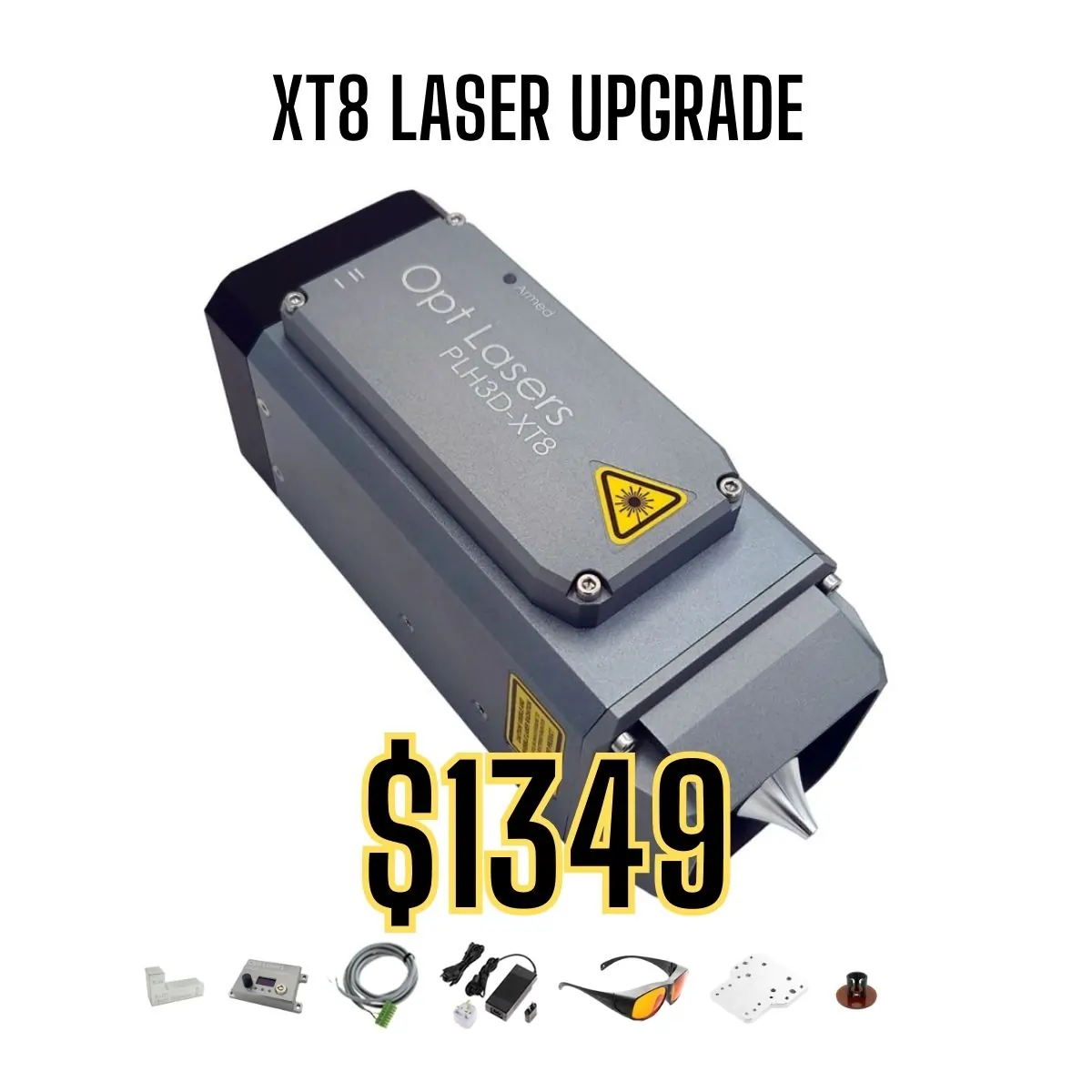
- 45 W Optical Power
- HD 125 DPI – 180 μm Spot
- Max Wood Cutting (1 Pass): 20 mm (¾")
- Best for high-speed engraving and deep cutting
- Engrave Wood with 350 mm/s (827 inch/min)
- Cut Plywood with 22.5 mm/s (53.1 inch/min)
- Easy Plug & Play Kit with Manuals
PLH3D-XF+
Entry-Level Solution

- 6 W Optical Power
- Standard 85 DPI – 300 μm Spot
- Max Multipass Wood Cutting: 3 mm (⅛")
- Perfect for hobby use and small creative projects
- Easy Plug & Play Kit with Manuals